🚀 Getting Started
When you first open Recipe Corner, you'll see five tabs at the bottom of the screen:
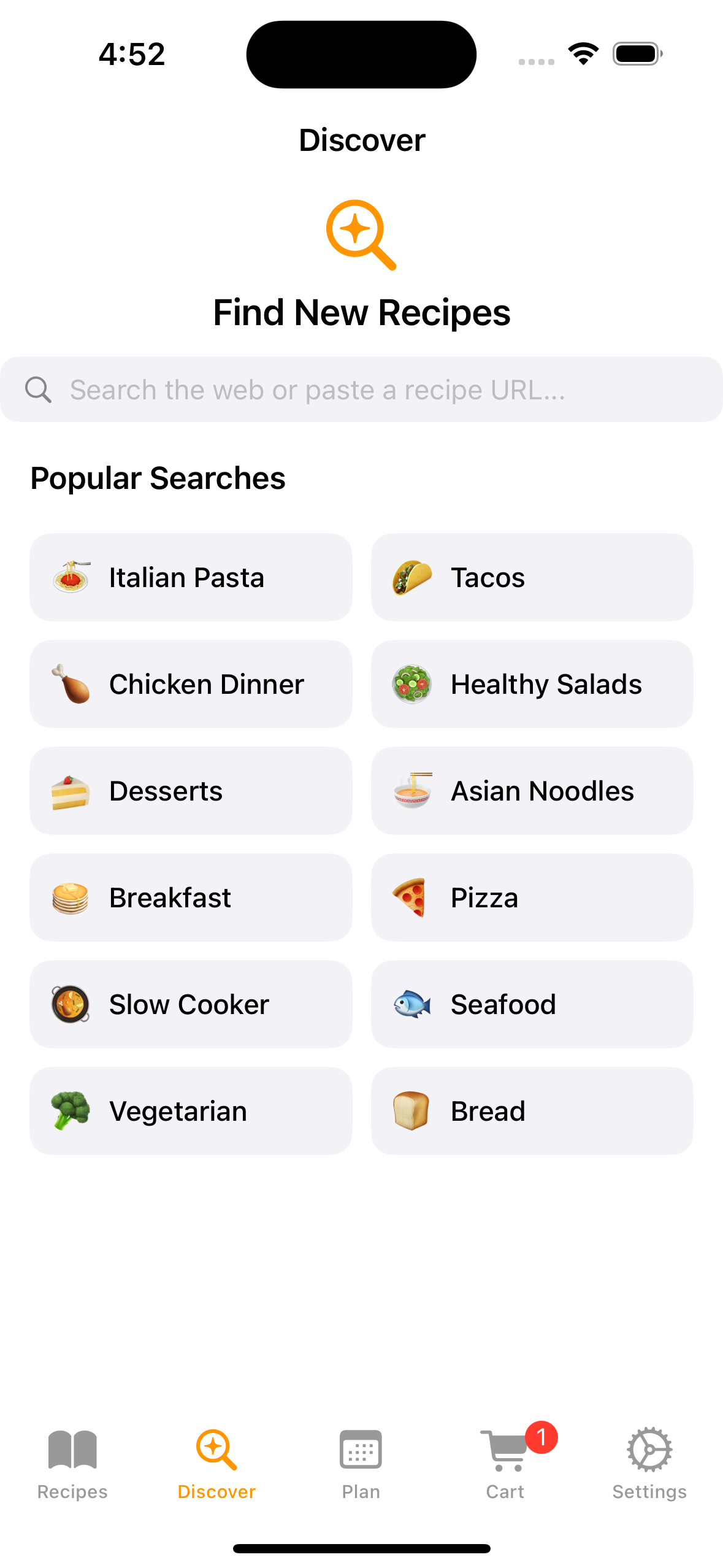
- Recipes — Browse and search your saved collection.
- Discover — Search the web for new recipes to import.
- Plan — Calendar-based meal planner for organizing your week.
- Cart — Your shopping list with ingredients from recipes.
- Settings — Adjust default servings, image caching, and more.
On first launch, the app opens to the Discover tab so you can start adding recipes right away.
🔍 Finding & Importing Recipes
There are three ways to add recipes to your collection:
Method 1: Search the Web (Discover Tab)
Open the Discover Tab
Tap the Discover tab (✨ icon) at the bottom of the screen. You'll see popular search suggestions like "Pasta," "Chicken," "Soup," and more.
Search for a Recipe
Type a dish name (e.g., "chicken parmesan") in the search bar, or tap one of the popular suggestion chips. Recipe Corner searches cooking websites and finds recipes with structured data.
Preview & Save
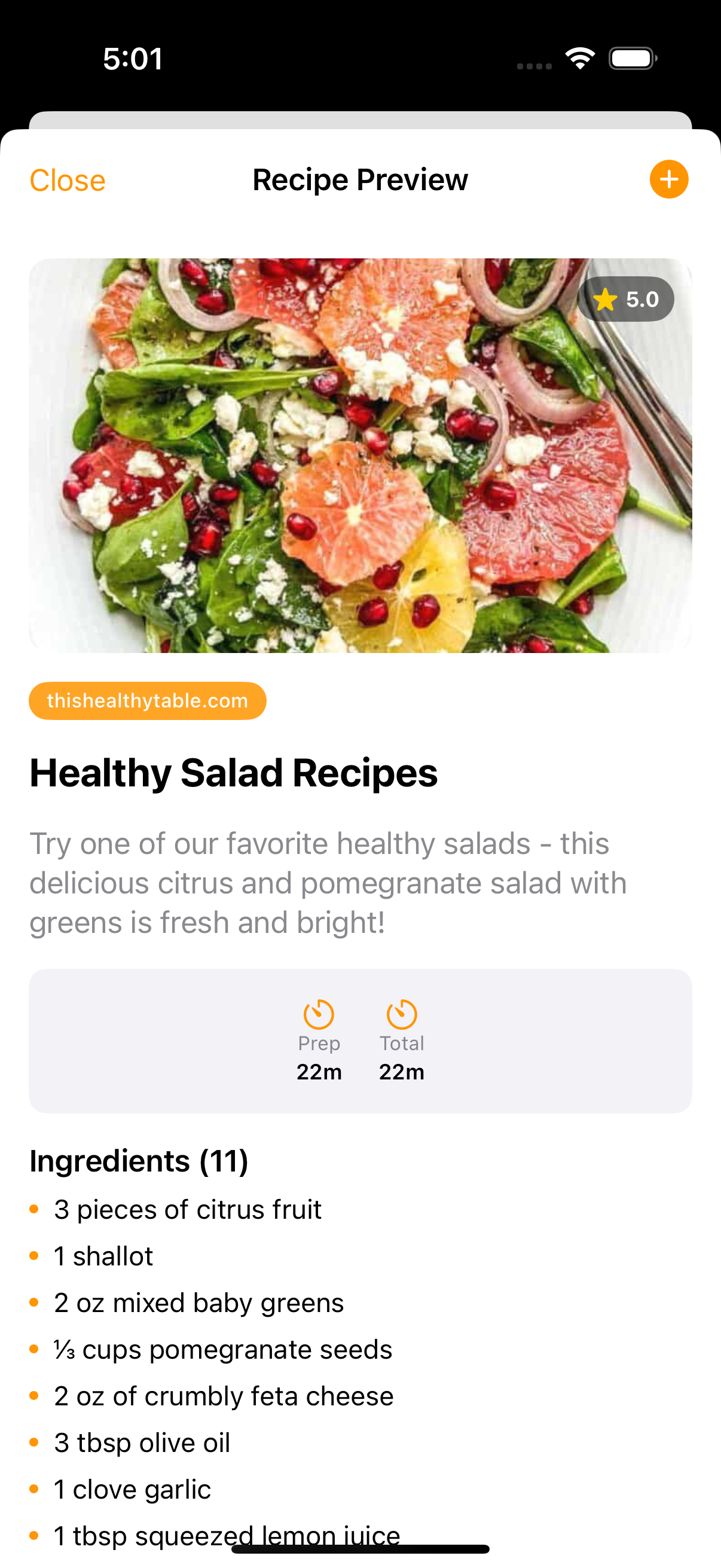
Tap a result to see a full preview — photo, ingredients, steps, and timing. If it looks good, tap the Add button to save it. The app will warn you if a duplicate already exists.
Method 2: Paste a URL (Discover Tab)
If you already have a recipe URL, paste it directly into the Discover search bar. Recipe Corner will fetch the page and extract the recipe data automatically. This works with most major cooking websites that use structured recipe data.
Method 3: Share Extension (from Safari)
Find a Recipe in Safari
Navigate to any recipe page in Safari (or another browser).
Tap the Share Button
Tap the share icon (📤) in Safari's toolbar.
Select "Recipe Corner"
Scroll through the share sheet and tap Recipe Corner. The extension will check the page for recipe data, show you a preview, and let you tap Import Recipe to save it.
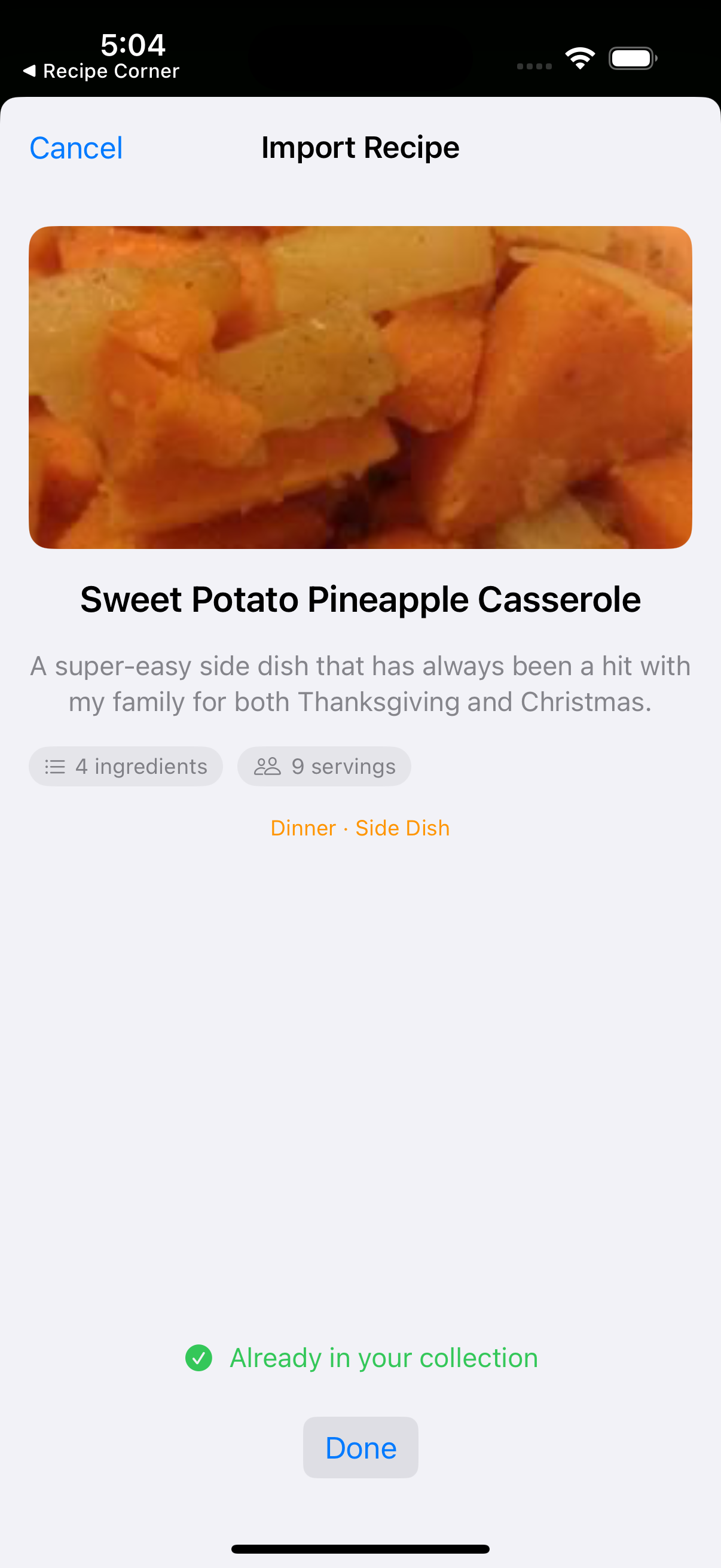
Tip: The Share Extension works best with popular cooking sites like AllRecipes, BBC Good Food, Serious Eats, Simply Recipes, and Food.com. The page must contain structured recipe data (JSON-LD) for import to work.
📚 Browsing Your Collection
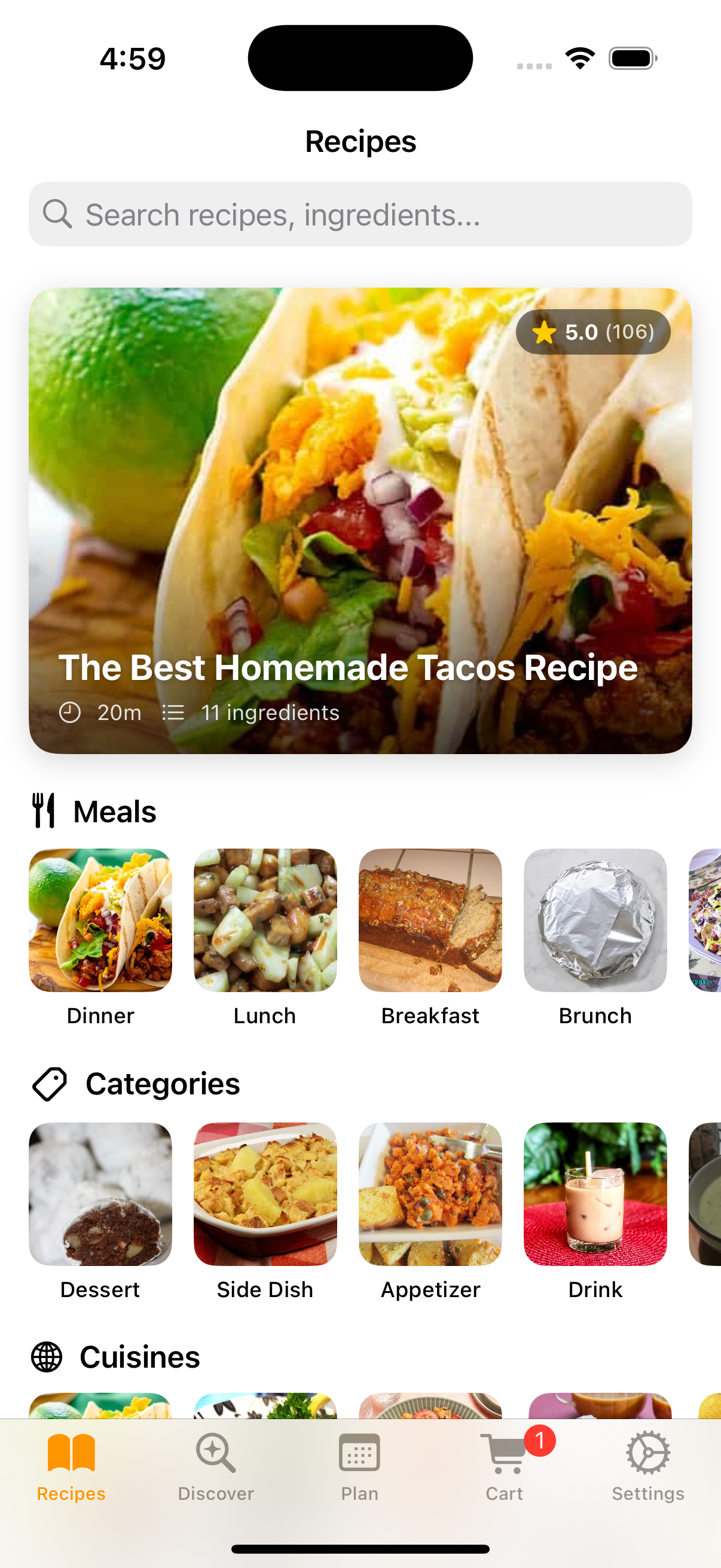
The Recipes tab is your recipe library. It features a rich browsing experience:
Browse Hub
The main Recipes view shows a visual hub with:
- Stats badges — Total recipes, categories, and cuisines at a glance.
- Featured recipe — Your highest-rated recipe highlighted at the top.
- Category carousels — Scroll horizontally through Breakfast, Lunch, Dinner, Dessert, and more.
- Cuisine carousels — Browse by Italian, Mexican, Asian, and other cuisines.
- Top Rated, Quick Meals, Recently Added — Curated carousels based on your collection.
Search & Filter
Tap the search bar to search by recipe name or ingredient. You can also tap a category or cuisine card to filter. Active filters appear as dismissible chips above the results. Toggle between grid and list view modes.
iPad & Mac
On iPad and Mac, the Recipes tab uses a sidebar layout with categories and cuisines on the left side for quick filtering.
👨🍳 Viewing a Recipe
Tap any recipe to open its detail view. Here's what you'll find:
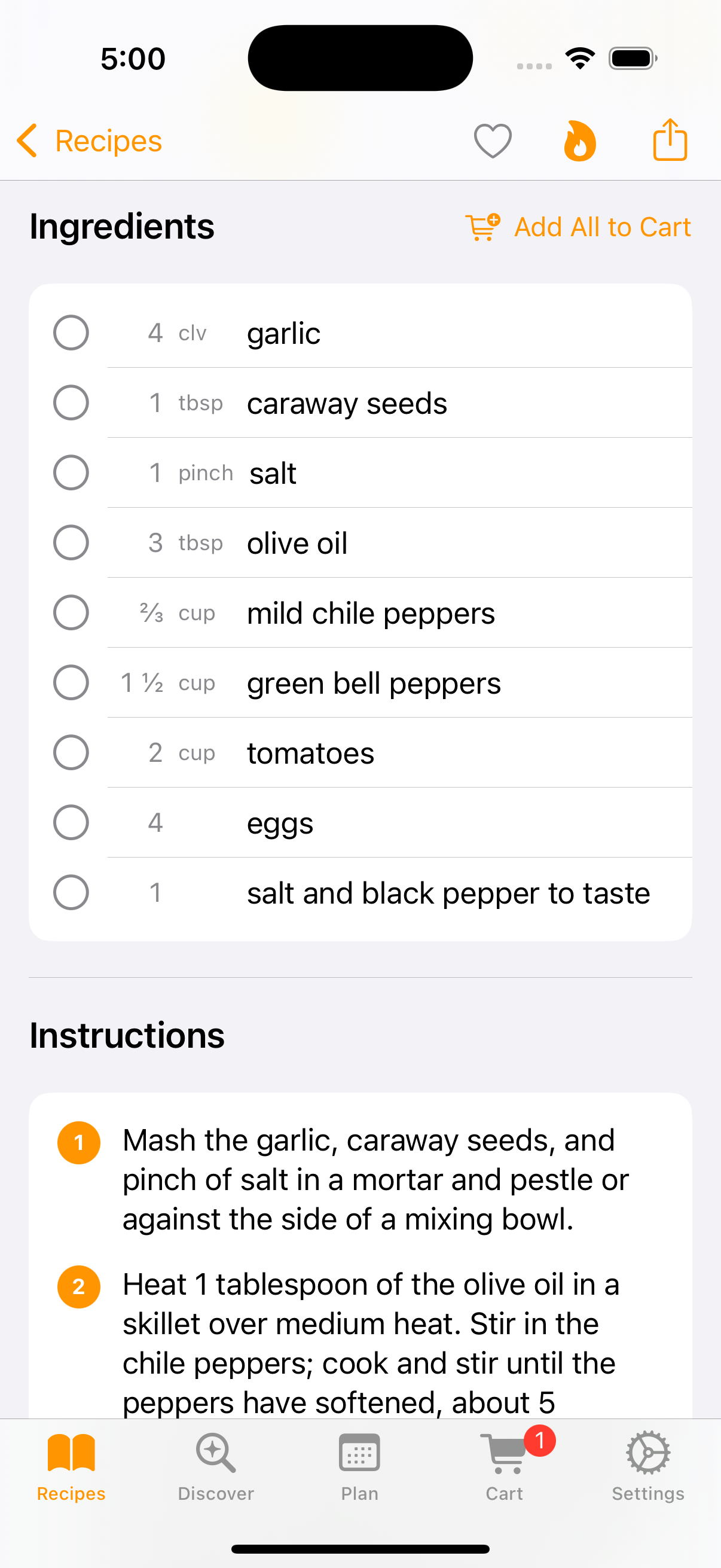
- Hero image — Full-width photo at the top (if available).
- Info cards — Servings, prep time, cook time, and total time.
- Source link — Tap to visit the original recipe website.
- Serving scaler — Tap +/− to adjust servings or tap the number for custom entry. Quick presets (1, 2, 4, 6, 8, 12) are available. All ingredient quantities update instantly.
- Ingredients checklist — Tap an ingredient to check it off (green circle with strikethrough). Great for tracking which ingredients you've already prepped.
- Instructions — Numbered steps with clear formatting.
- Notes — Additional tips from the recipe source.
Cooking mode: Your screen automatically stays on while viewing a recipe so you never lose your place while cooking!
🛒 Shopping Cart
Build grocery lists directly from your recipes:
Adding Ingredients
- Single ingredient: Swipe right on any ingredient in a recipe detail view to add it to the cart.
- All ingredients: Tap the "Add All to Cart" button at the top of the ingredients list.
- Long-press menu: Long-press a recipe in the list and select "Add Ingredients to Cart."
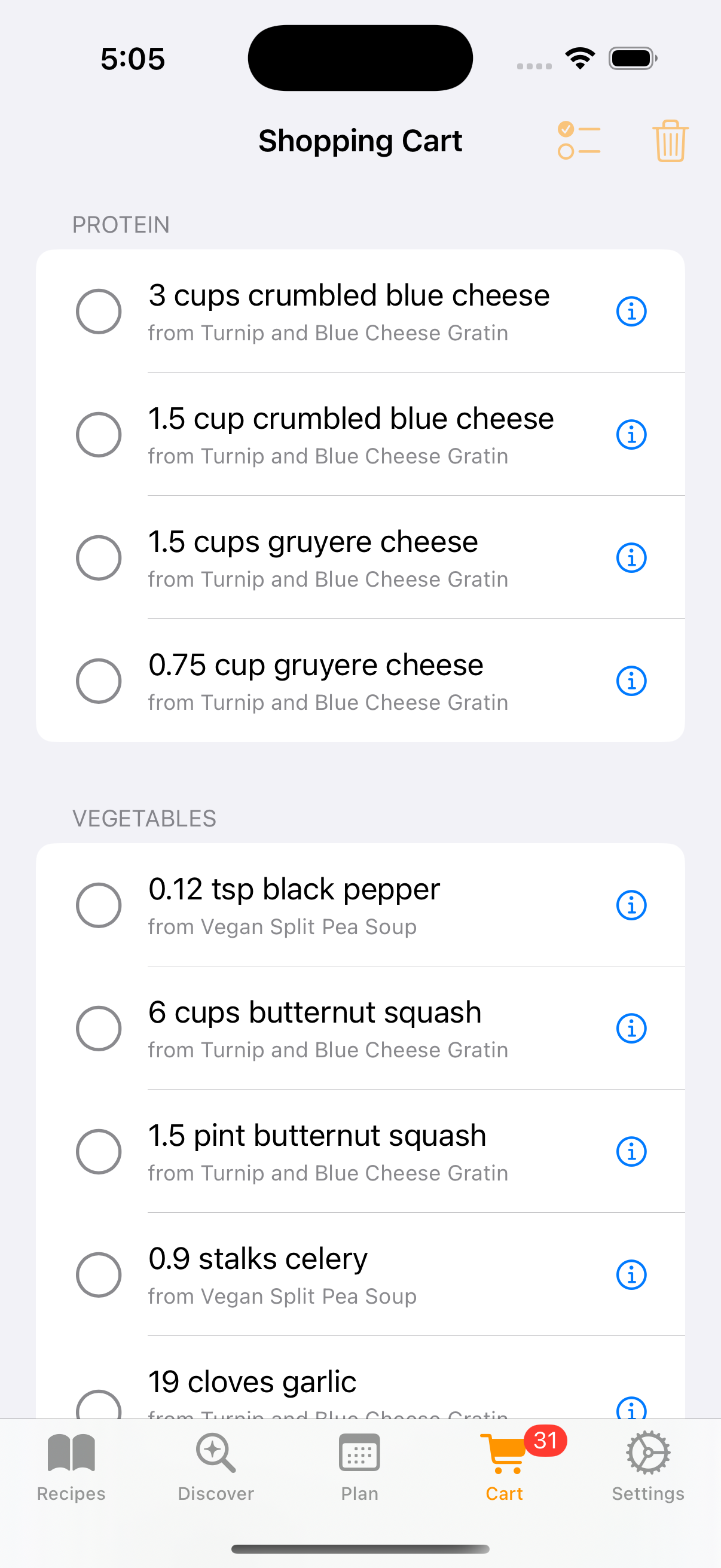
Managing Your List
- Check items off as you shop — tap to toggle. Checked items move to a "Completed" section.
- Edit an item — tap the info button to change quantity, unit, name, or category.
- Remove items — swipe left to delete, or use the menu to clear checked or all items.
Export to Apple Reminders
Tap the Reminders button (top-left of the Cart tab) to export all unchecked items to the iOS Reminders app. This creates a "RecipeManager" list in Reminders with all your items, perfect if you prefer using Reminders as your shopping list.
📅 Meal Planning
Plan your meals for the week using the Plan tab:
Adding Meals
Open the Plan Tab
Tap the Plan tab (📅 icon) to see a calendar view of your week.
Select a Day
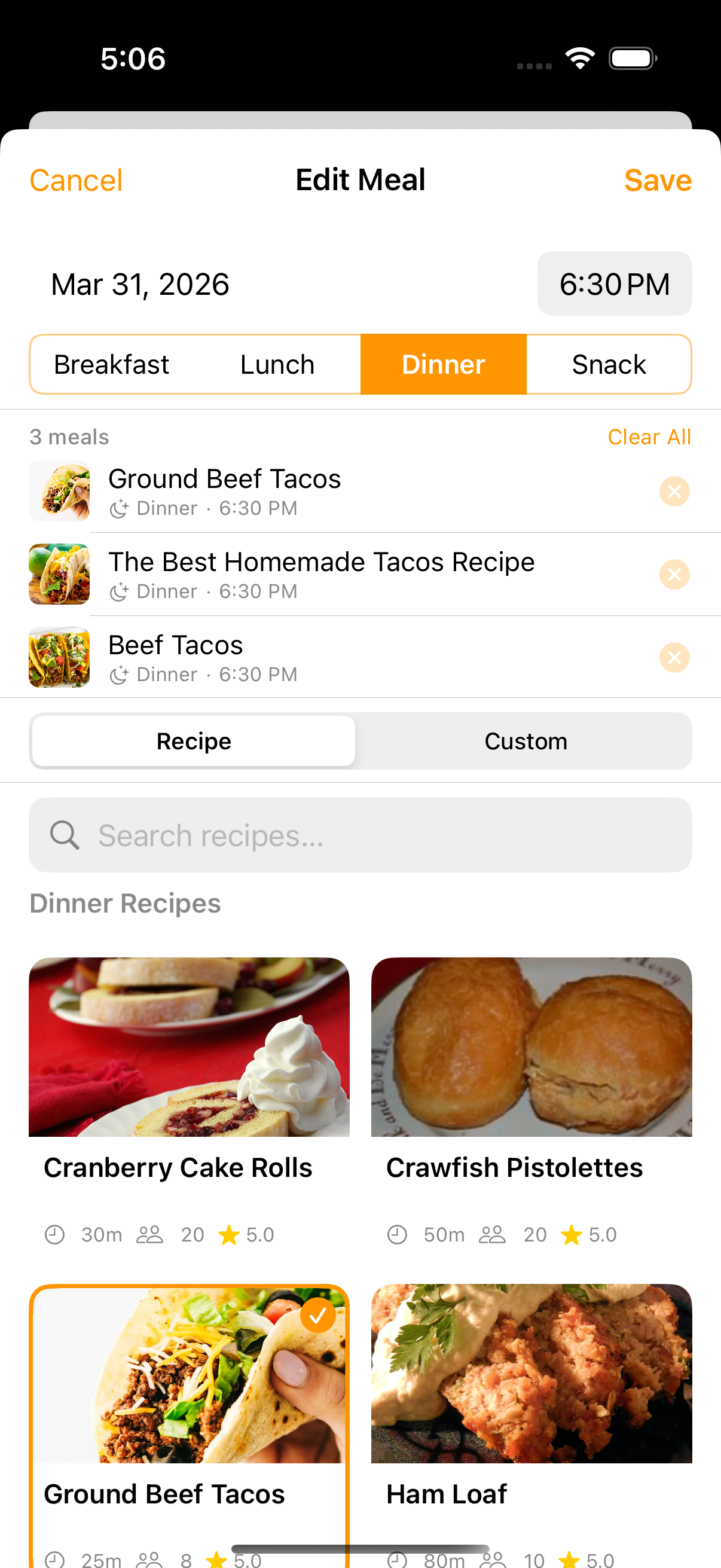
Tap a day to see its meal slots: Breakfast, Lunch, Dinner, and Snack.
Assign a Recipe
Tap a meal slot to browse your recipe collection and assign a recipe. You can also create custom meal entries without linking a recipe. The same recipe can be assigned to multiple meal types.
Features
- Multi-meal selection — Assign a recipe to lunch and dinner in one step.
- Configurable default times — Set default meal times per weekday in Settings.
- Mark as cooked — Track which meals you've completed.
- Combined cooking view — View all recipes for a meal group in a full-screen cooking mode.
📤 Sharing Recipes
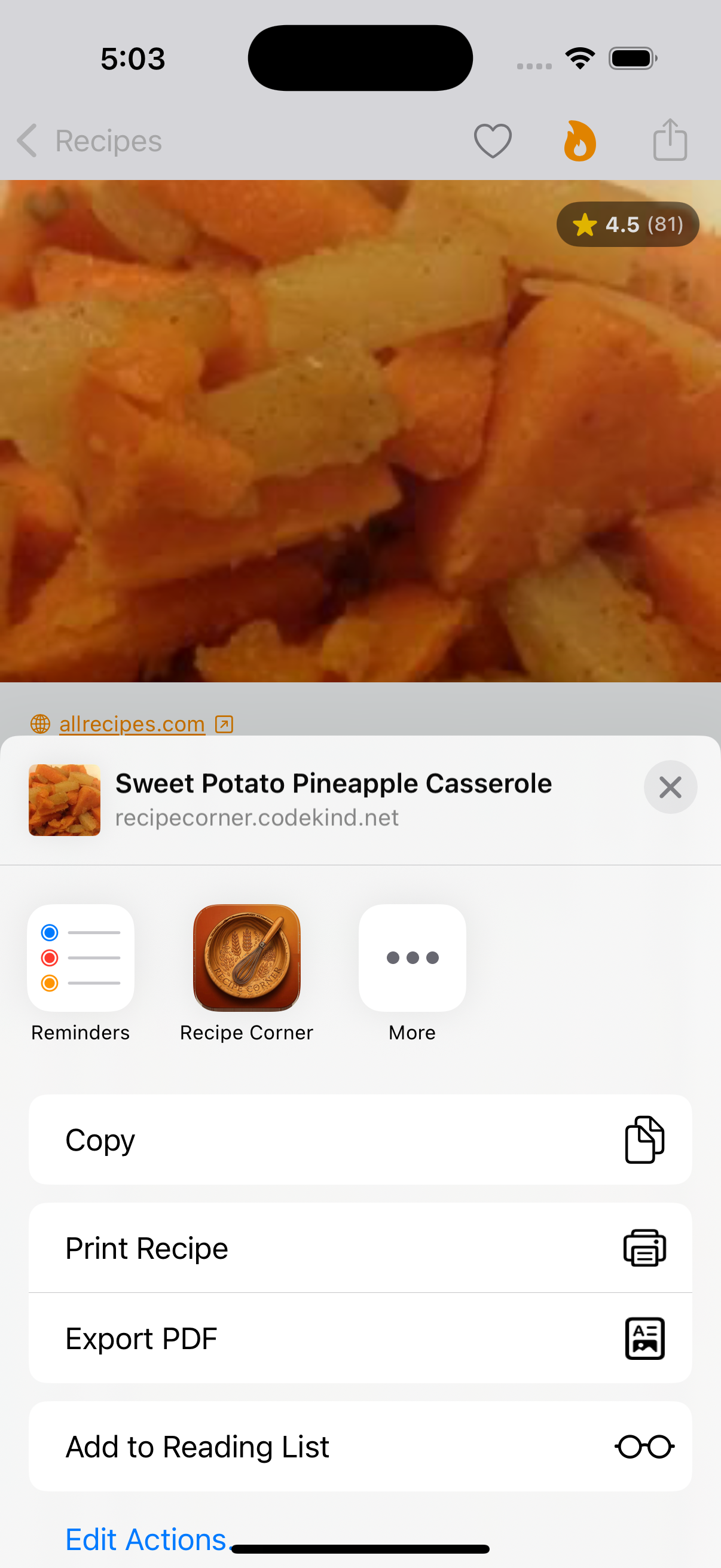
Share your favorite recipes with friends and family:
- Open a recipe and tap the Share button in the toolbar.
- Recipe Corner generates a beautiful branded share card — an image with the recipe photo, title, timing, and ingredient/step counts.
- The share also includes a deep link. If the recipient has Recipe Corner installed, they can tap the link to import the recipe directly into their collection.
- You can also long-press a recipe in the list to share it or copy the original source URL.
✏️ Editing Recipes
Tap the Edit button (pencil icon) in any recipe's detail view to modify:
- Recipe name, description, and notes.
- Servings, prep time, and cook time.
- Individual ingredients — edit names, quantities, units, and categories.
- Steps — reorder, edit, add, or remove instructions.
On Mac, use ⌘E to open the editor and ⌘S to save.
🔀 Merging Recipes
Have multiple versions of the same recipe? Combine them:
Enter Selection Mode
In the Recipes tab, tap Select in the toolbar.
Select 2+ Recipes
Tap the recipes you want to merge.
Tap Merge
The merge editor lets you review the combined recipe — ingredients are intelligently combined, and you can edit the result before saving.
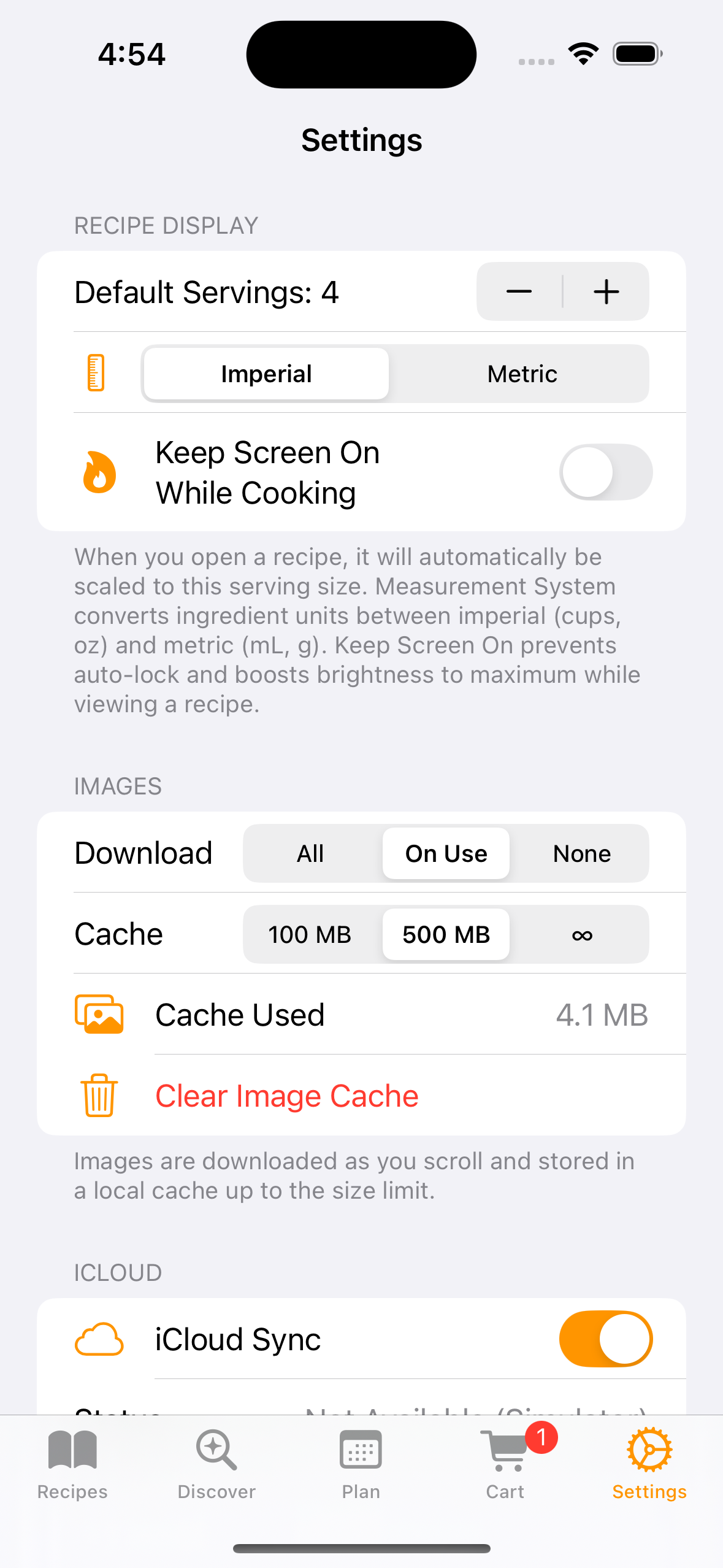
⚙️ Settings
Recipe Display
- Default Servings — Set a default serving size (1–50). Recipes automatically scale to this amount when you open them.
- Measurement System — Switch between imperial (cups, oz) and metric (mL, g) units for ingredient display.
- Keep Screen On While Cooking — Prevents auto-lock and boosts brightness to maximum while viewing a recipe.
Images
- Download Mode — Choose between "Cache on Scroll" (default), "Download All," or "No Images."
- Cache Size — Set a size limit for cached images and clear the cache when needed.
iCloud
- iCloud Sync — Toggle iCloud syncing on or off. View your current sync status. Recipes sync automatically across all your Apple devices signed into the same iCloud account.
Data
- Recipe & Database Info — See your total recipe count and database size at a glance.
- Clear All Recipes — Permanently delete your entire recipe collection (with confirmation).
Support & About
- Support & Feedback — Get help or report an issue.
- Donate — Support Recipe Corner's development via PayPal or Apple Pay.
- How to Use / Privacy Policy — Quick links to this guide and the privacy policy.
- Version — See the current app version and build number.
💡 Tips & Tricks
- Quick-scale presets: In the recipe detail view, tap the serving number itself to type a custom amount, or use the quick preset buttons (1, 2, 4, 6, 8, 12).
- Unit conversion: Recipe Corner automatically converts between units when scaling — e.g., 48 teaspoons becomes 1 cup.
- Keyboard shortcuts (Mac): ⌘N to discover recipes, ⌘⇧L for the shopping cart, ⌘E to edit, ⌘S to save.
- Context menus: Long-press (or right-click on Mac) on any recipe card for quick actions.
- Badge count: The Cart tab shows a badge with the number of unchecked items.
- Bulk import: Use the Discover tab to search and add multiple recipes in one session — the app tracks progress with "X added, Y skipped" reporting.